
It’s not difficult to configure your AyrMesh products. Each product has a small web server that provides a page allowing you to configure it. To access that page, find the IP address of your device from your router’s “Client list” or “DHCP table”
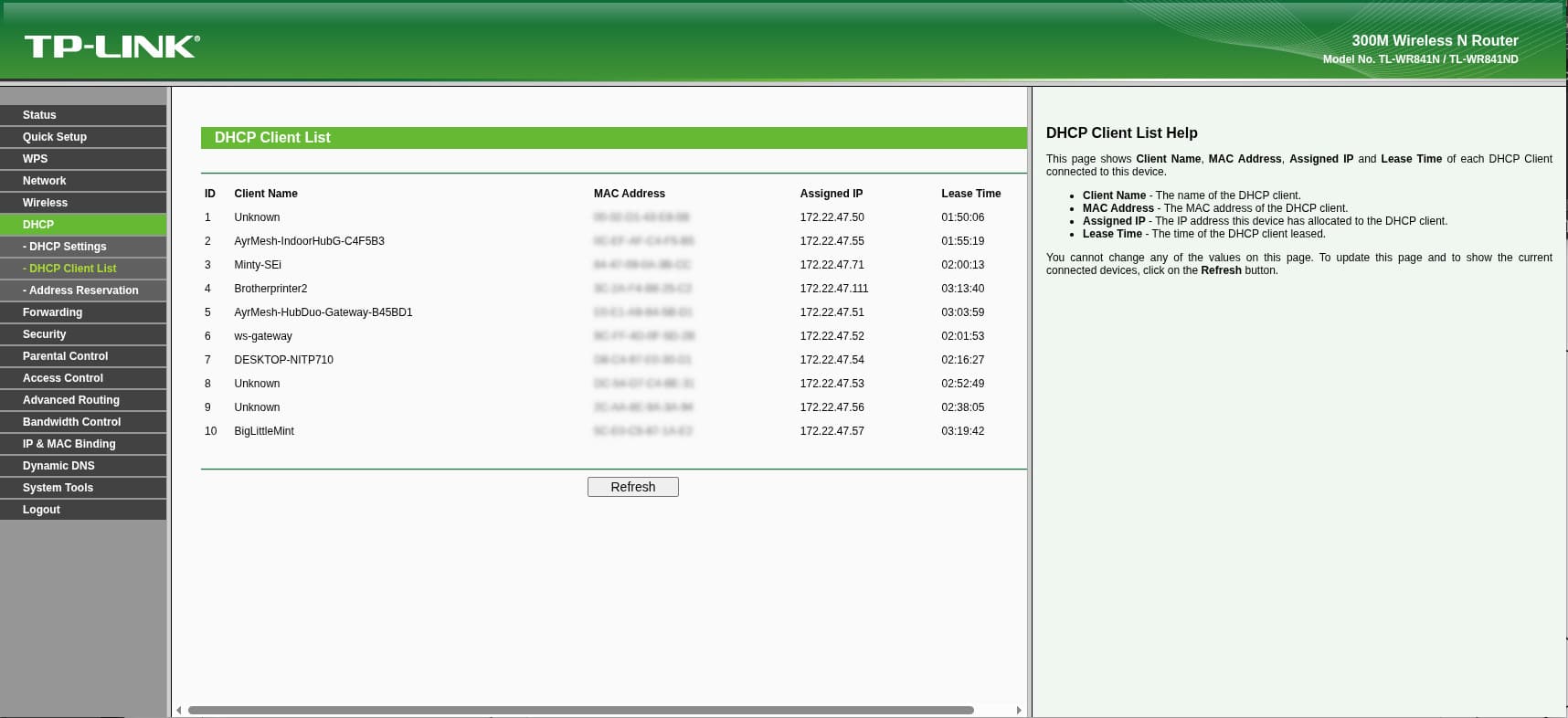
On my router, above, you can see that my HubDuo is at 172.22.47.51. So I put “172.22.47.51” into the URL bar of my browser and I get a login screen:
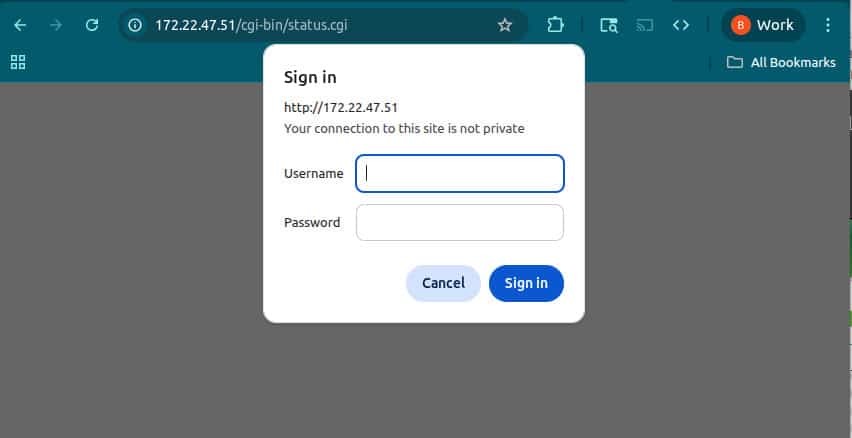
(Note: some browsers will automatically insert “https://” in front of the IP address, and it will fail. You must use the unencrypted version, “http://[IP address]” – in this case, http://172.22.47.51)
You log in with your AyrMesh.com username and password. If you don’t have an AyrMesh.com username and password, or if the device has been “factory reset,” the default username and password are both “ayrmesh” – put that in both fields.
Once you have logged in, you’ll see the Status page:
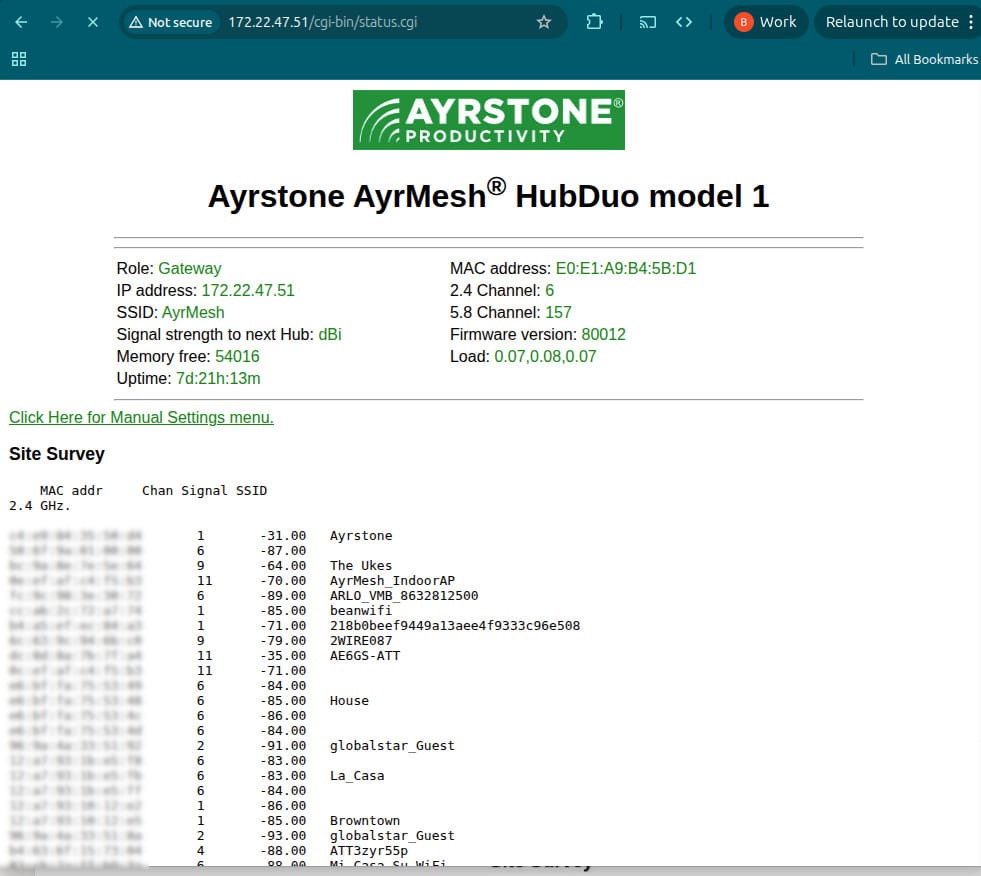
The Status page itself has several useful pieces of information – the Signal strength to the next Hub (the Hub with the strongest signal strength in the mesh), the Site Survey (the list of all the WiFi access points the Hub can “see” – handy for evaluating interference), and, further down, a list of devices connected to the Hub’s WiFi.
You can see the “Click Here for Manual Settings menu” link between the Hub’s information and the Site Survey. To access the Manual Settings page, just click that link. If that link is not on the Status page, just edit the URL from “status.cgi” to “settings.cgi” – either way, you’ll see the settings page:
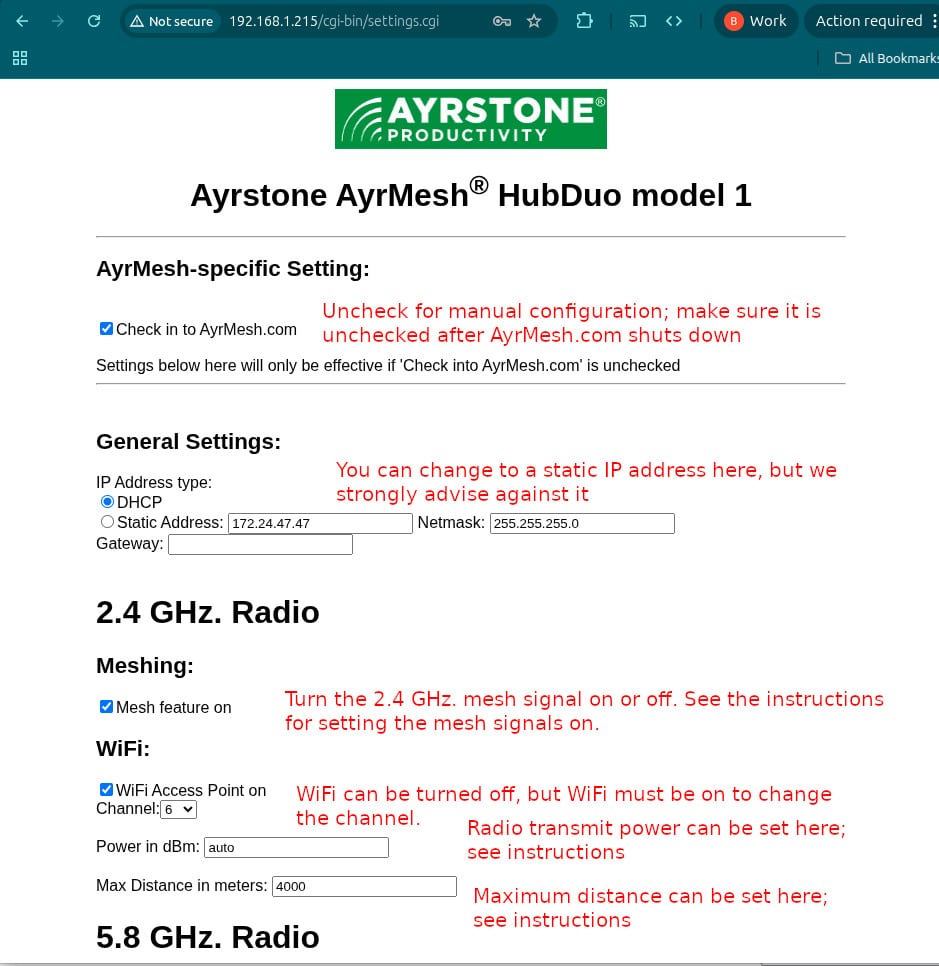
The page continues:
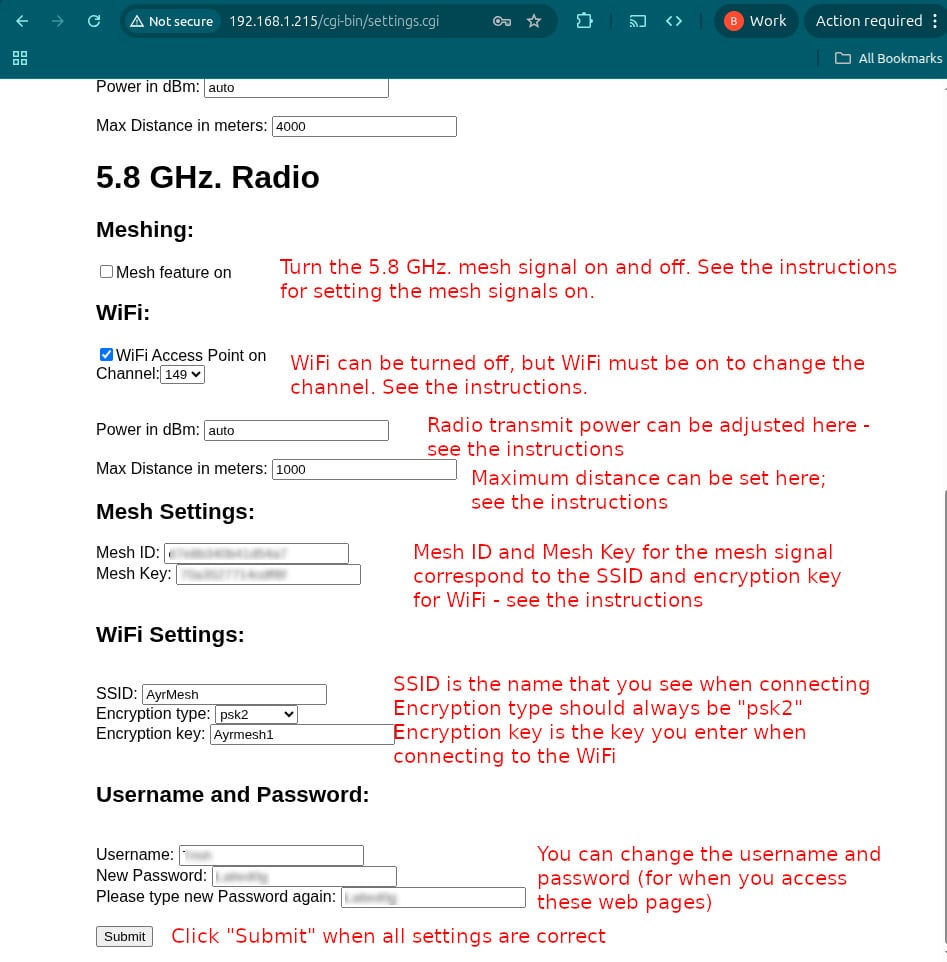
One important point: support for “special” characters varies from one device to another; in general, we STRONGLY advise that you ONLY use letters and numbers in the text fields (SSID, Encryption Key, Mesh ID, Mesh Key, Username, and Password).
The HubDuo is the most complex AyrMesh product; all the others are simpler. For a more complete explanation, as well as instructions for each of the individual products, download the complete PDF instructions. We strongly recommend downloading those instructions and keeping them someplace safe; if you ever sell or give away your Ayrstone gear, give the new owner those instructions.
I suggest printing out these pages, as well.
One other note: for the technically-inclined (or very curious), there is also an “advanced status” page at “adv-status.cgi” on most of the devices. That page shows the Linux logs, as well as a lot of other technical information about the device. To access it, just change the URL in your browser from “http://[IP address]/cgi-bin/status.cgi” or “http://[IP address]/cgi-bin/settings.cgi” to “http://[IP address]/cgi-bin/adv-status.cgi” and click the “Enter” key on your keyboard. If you are looking at the logs, there is one peculiarity you may see: when the Hub detects a problem, it is called an “Ayror” instead of an “error” – it makes it easy to find.