
Now that Ayrstone has shut down, this is the only source for support for Ayrstone products. Fortunately, all the materials that our support representatives used are here. You can troubleshoot, diagnose, and, in most cases, fix your AyrMesh network using the materials here. We also have links to all the “Quickstart” installation instructions.
IMPORTANT NOTE: We found a bug in the script that moves AyrMesh products off of AyrMesh.com. The script has been fixed. If your AyrMesh devices are not responding, DO A FACTORY RESET – connect the device to your router, let it boot completely (about 90 seconds from power-on), and hold down the reset button for at least 20 seconds (30 seconds for the HubDuo). The device should reboot (if it doesn’t, it may not have booted fully) and it will check in to AyrMesh.com again. It will then check into AyrMesh.com, get the corrected script, and work properly. The device should reboot in normal manual configuration mode.
If you can’t find the device at its “normal” IP address, check your router’s DHCP (client) table or use an app like “Fing” to scan your network for it.
Most Common Problems – Ethernet cables and Network errors
The vast majority of problems with AyrMesh products have to do with Ethernet cables.
Ethernet cables comprise eight wires in four twisted pairs: two pair for power and two pair for data. If one of the power wires fails (e.g. falls out of the crimp on one of the RJ-45 connectors), then the device won’t light up – that’s the easy case. The hard case is when one of the data wires fails – then the device will light up and work, but it won’t be able to communicate with anything connected to that Ethernet cable.
For a “Gateway” device (connected to your router), that means it will send out a good, strong signal, but you won’t be able to connect anything to it, since the devices connecting to it won’t be able to reach the router and join the network.
For a “Remote” device, this means it will be able to connect to the Gateway device and be accessible over the network. You’ll be able to log into the device, and a Remote Hub will be able to provide WiFi, but it won’t communicate to anything connected to the Ethernet port on the power supply. There’s more information about fixing Ethernet cables further along.
The second most common problem causing AyrMesh products to apparently fail is an error on the network causing your router to “freeze.” The AyrMesh network (Hubs, Receivers, IndoorHubs, etc.) is, essentially, transparent to the router – anything connected to the Hub looks to the router as if it is connected directly to the port on the router that the Gateway Hub is plugged into. The AyrMesh network doesn’t route, filter, or alter the data going through it – it just passes the along. The result is that you can connect a device to the network miles away from your router and cause a problem that makes the router “crash” immediately.
There are several conditions that can cause the router to freeze, but there are two common ones: network loops and IP address conflicts. Network loops occur when a single device is connected to the network through more than one interface at the same time – for instance, a device connected to the network with an Ethernet cable that then connects through its WiFi connection. IP address conflicts occur when two devices on the network have the same IP address. IP address conflicts usually occur because (1) there is a device configured with a static IP address that’s within the router’s DHCP pool, and (2) someone connects a second router to the network that’s serving IP addresses on the same IP subnet as the primary router. To learn more about network errors, please check out my slideshow on IP networking – it’s a pretty quick but comprehensive guide to these kinds of problems.
Problems logging in to the device
On some AyrMesh products, a special character in the username or password field can cause corruption that will make it very difficult or impossible to log in. The quickest practice is to take down the device, connect it to your router, and do a “factory reset” by:
- Waiting for the device to fully boot (about 90 seconds after power on),
- Holding down the “reset” button for at least 20 seconds, and
- Making sure the device reboots after you release the reset button
After resetting, you will be able to log in using the username “ayrmesh” and the password “ayrmesh.” If you cannot, you probably were not successful resetting the product and need to do it again (I get impatient holding down the reset button, so I time it with my watch or count slowly to 25 to be sure).
After that, follow the Manual Configuration instructions.
Troubleshooting Individual AyrMesh Products
It can be difficult to tell whether a given failure is due to the AyrMesh product, the Ethernet cable, or the network. However, these are the general instructions:
- Check the lights on the device. If they’re off, the device does not have power – check the power supply and the cable.
- If the lights are on, then either the device is not configured correctly (Channel, Mesh ID, and Mesh Key for meshing Hubs and IndoorHubs, SSID and encryption passkey for Receivers and Bridges) or the unit has failed. Take it down, connect it to a router, and check the configuration.
- If the configuration of the device is correct (e.g. Mesh ID, Mesh Key, and channel match the rest of the network for a Remote Hub, SSID and Encryption Passkey match between a Hub and a Receiver or between two Bridge radios) and they won’t connect via wireless, then the device may be bad. However, I encourage you (from long, bad experience) to double-check and triple-check all those settings before discarding the device.
Optimization issues – Networks that are working, but not perfectly
It is not unusual for a network to be working, but with speeds considerably slower than expected, or with Hubs or Receiver “dropping” off the network from time to time. There are several circumstances that can reduce the effectiveness of the mesh network.
The speed (bandwidth) from the Hub2x2 models can be as high as 65 Mbps or a little higher, while the speed from the Hub2T can be as high as 35 Mbps. The HubDuo is the same as a Hub2x2 on the 2.4 GHz. signal, but can transfer at speeds up to 100 Mbps on the 5.8 GHz. signal (for much shorter ranges).
The speed and range are dependent on four factors:
- Obstructions between the Hub and the device – there must be good line-of-sight (more correctly, at least 60% open Fresnel zone) between the Hub and the devices. Obstructions (solid objects) will reduce both range and speed. Metal and water will stop the signal cold – please note that tree trunks are really just big columns of water as far as WiFi is concerned.
- Interference – There are only three distinct channels in the 2.4 GHz. WiFi band – 1, 6, and 11 – all the other channels overlap those. As a result, WiFi access points on channels 2, 3, 4, 5, 6, 7, 8, 9, and 10 all interfere with channel 6, for instance. Additionally, lots of wireless things use the same 2.4 GHz. band as WiFi – cordless phones, wireless security systems, microwave ovens, even some RADARs – if they are interfering with the Hub, the speed and range will be compromised.
- The capabilities of the “client” device – the transmit power of the device’s WiFi radio, the size and quality of its antenna, and the number of “spatial streams” the device’s WiFi radio use will all help or hurt performance. A device with two transmit and receive spatial streams (a “2×2” or “2T2R” wifi device) will generally have twice the speed of one with a single spatial stream. Devices with relatively weak WiFi radios and relatively small antennas, especially antennas contained within the device’s outer shell, have much lower range and much less speed than devices with strong WiFi radios and large, external antennas.
- The underlying network – you cannot get more speed than is available at the Ethernet port that the Gateway Hub is plugged into. If there are problems with the underlying network, they can cause the Hub to have slow performance or to fail completely.
Radio Considerations
The AyrMesh products depend on microwave radio signals – that’s what WiFi is. Signals can be too weak to connect, of course, but they can also be too strong. If the Hubs are too far apart, or mounted too low, or if there are too many obstructions, the signal from the Hub may be too weak to connect. On the other hand, if the Hubs are too close together, the strong signals between the Hubs can “overwhelm” the Hubs, causing them to become unreliable. The same is true between Hubs and Receivers – despite their name, Receivers actually do transmit a powerful signal back to the Hub.
Note also that the high-gain antennas on the Hub work by “pushing” signal from above and below the Hub out toward the horizon (perpendicular to the antennas). For this reason, the signal may be significantly weaker just under the Hub than out 100 yards away, and it is critical that the antennas point straight up in the air.
Each device, when you log into it, shows its Status Page, which includes a “site survey” of nearby WiFi access points and their signal strengths:
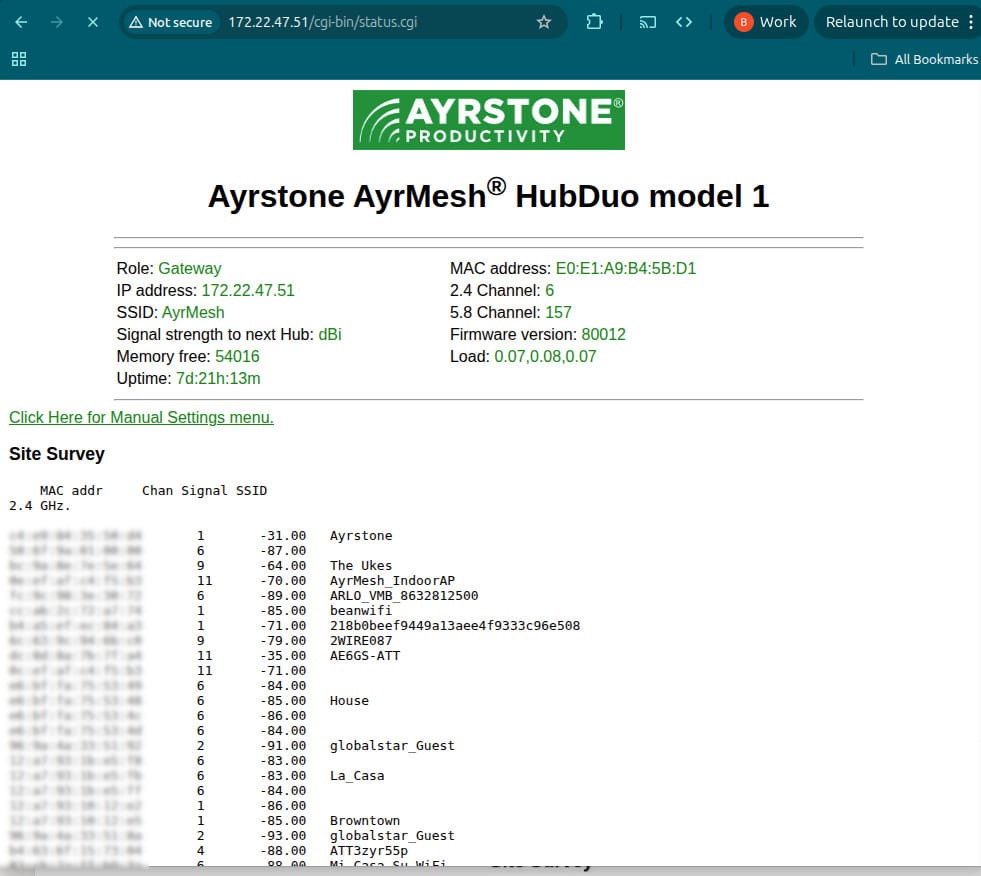
The signal strengths are a little tricky: they are measured in deciBels of a milliWatt (dBm), which is an exponential/logarithmic scale. Because the received signals are (almost) always less than a milliwatt in strength, the signals strengths are (almost) always shown as negative numbers. That makes things a bit trickier, but all you have to know is that a -70 dBm signal is approximately a “normal” WiFi signal, a -60 dBm signal is very strong, and -80 dBm is very weak. I only consider signals stronger than -80 dBm to be significant, but I consider any signal stronger than -60 dBm to be extreme. Getting a channel (1, 6, or 11) “clear” of interference will help your AyrMesh network work better, with higher bandwidth and longer range.
The 5.8 GHz. WiFi on HubDuo models is, of course, similar, but the 5.8 GHz. channels are all distinct, so you need only the channel that the Hub is on.
The “Site Survey” on the Hubs only show other WiFi signals; they do not have a way to “see” other signals that may be interfering with the Hubs. The only way to “see” all the signals is by using a Spectrum Analyzer, a device that reports the aggregate strength of ALL the signals on a particular frequency. The only problem is that the Spectrum Analyzer can’t necessarily distinguish the separate signals, so finding a particular non-WiFi device that’s interfering requires some skill and patience.
The other major issue is obstructions, as mentioned earlier. Microwave radio, including WiFi, travels in a “Fresnel zone” between two points. The Fresnel zone is a football-shaped space between the antennas of two microwave radios, such as two AyrMesh Hubs or an AyrMesh Hub and a WiFi client like your phone or an AyrMesh Receiver. The Fresnel zone
More on Ethernet cables
The most common failure point on Ethernet cables is the RJ-45 connectors on each end; the wires are separated (untwisted) and placed inside the RJ-45 connector and pins are pressed through the wires to make a connection using a special swaging tool. Sometimes the wires can pull out of the connector and free of the connection pins, resulting in that wire failing. Sometimes the wire will be just barely hanging on to the pin, which creates a cable that works intermittently – it will work for a while, then stop working.
The “good news” is that many “bad” Ethernet cables can be made “good” by swaging new RJ-45 connectors on the ends; the “bad news” is that one almost always has to replace both ends to ensure the “bad” end is replaced, and, honestly, swaging new RJ-45 connectors is not easy, at least the first few times. You have to strip the sheath and shielding off the cable, untwist four pairs of wires, get them exactly in the right order, jam them into a new RJ-45, and then use a tool to swage the RJ-45 to the wires, which cab require some grip strength, especially if you don’t have one of the “ratcheting” swaging tools.
Final Words
A few network skills that are easy to pick up can prove useful. One is the “ping” command, available at the command prompt of any computer or via an app on any portable device. You can “ping” a device, be it a Hub, Receiver, IndoorHub, or a device connected to them, to verify that it’s connected to your network. Very simply, all you have to do is type “ping” and the IP address of the device you’re looking for. You’ll see a series of lines indicating whether or not the device responded to the “ping.” There are innumerable good tutorials online for basic networking skills, and I cannot provide anything better. However, for just a basic understanding of how networks work (devoid of much practical advice), please see my short slide show.